
Upload your product image
Drag and drop a JPG, JPEG, PNG or WebP product image into the uploader, or click to browse. You can add up to ten images in one upload flow.
Translate product images for your store. Review real feature, specification and packaging examples, keep catalog terms consistent and check each image before publishing.
Start with 30 free credits — translate up to 3 images, no payment required.
Drag and drop images here, or click to browse
Supports JPG, JPEG, PNG and WebP · Upload one or multiple images
Step by step
Drag and drop a JPG, JPEG, PNG or WebP product image into the uploader, or click to browse. You can add up to ten images in one upload flow.
English is preselected as the target language, while the source is detected automatically from the image.
Compare every text area, model and measurement with the source. Download the reviewed file, then preview it in your store before publishing.
A seller’s workflow: supplier image → reviewed listing asset
Use this product image translator for readable supplier graphics, feature panels and packaging photos. Start with one representative image before processing a whole SKU’s gallery. The output is a rendered image with translated wording placed into the visual; you still decide whether its facts, copy and presentation are ready for your store.
Use an original supplier file you have permission to use, rather than a compressed chat thumbnail. Choose JPG, JPEG, PNG or WebP, up to 20 MB per file and 4096 pixels on the longest side. If a detail sheet is taller, export readable panels that keep each complete caption with its product detail. Do not cut a dimension away from its arrow.
Write a short reference list first: exact brand spelling, model, approved color names, units and claims. Distinguish descriptive copy from identifiers. “Removable divider” can be translated; S-301 must still identify the same item. For a brand with an approved local name, supply it explicitly. These unbranded examples do not demonstrate logo or trademark reproduction.
Upload one image, confirm the source language when known, then choose your target. English is preselected here; you can change it or select up to five targets. Use the optional instructions for the terms that matter to this image. For the organizer, an example brief is:
Translate into English. Keep S-301 and 30 × 18 × 12 cm unchanged. Use “Off-white” for 米白 and “Removable divider” for 可拆卸隔板. Keep feature copy concise without adding claims. Do not convert units.
This is suggested wording, not a tested correction for the organizer. Instructions guide generation; verify the actual output. Keep critical brand instructions specific, and avoid a long list of unrelated requests.
The sources below are AI-generated fictional sample products, not customer photos. These Chinese-to-English outputs were produced on 15 October 2026 using the image-processing code used by Image Translator and reviewed again for this guide on 20 October. They are processor-level examples, not a signed-in website test or a guarantee for other images. Open either image to inspect it full size.
Seller’s brief: Prepare a lamp feature graphic for an English listing. Keep L-120, 5W and USB-C; translate the brightness feature without inventing a battery-life or charging-speed claim.
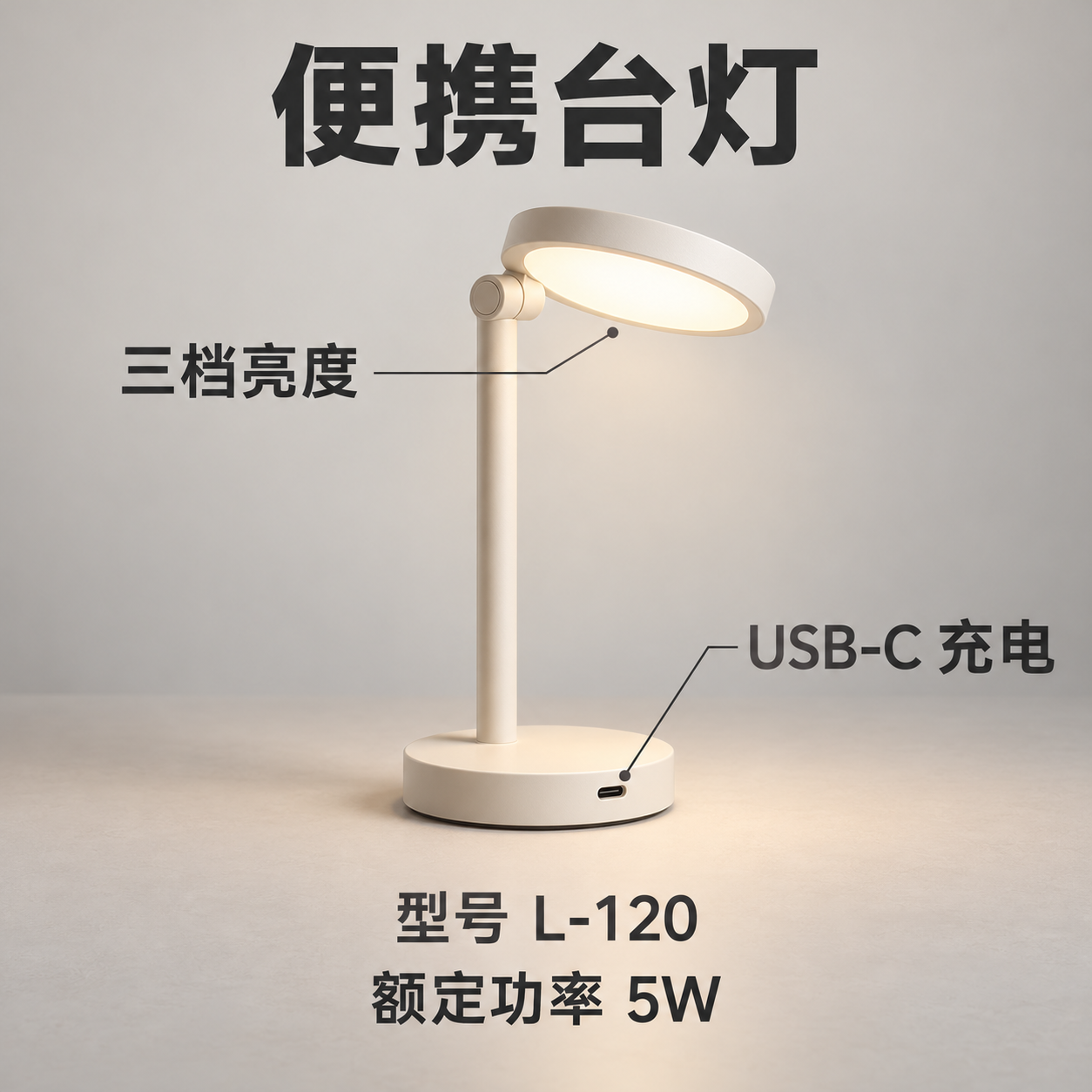
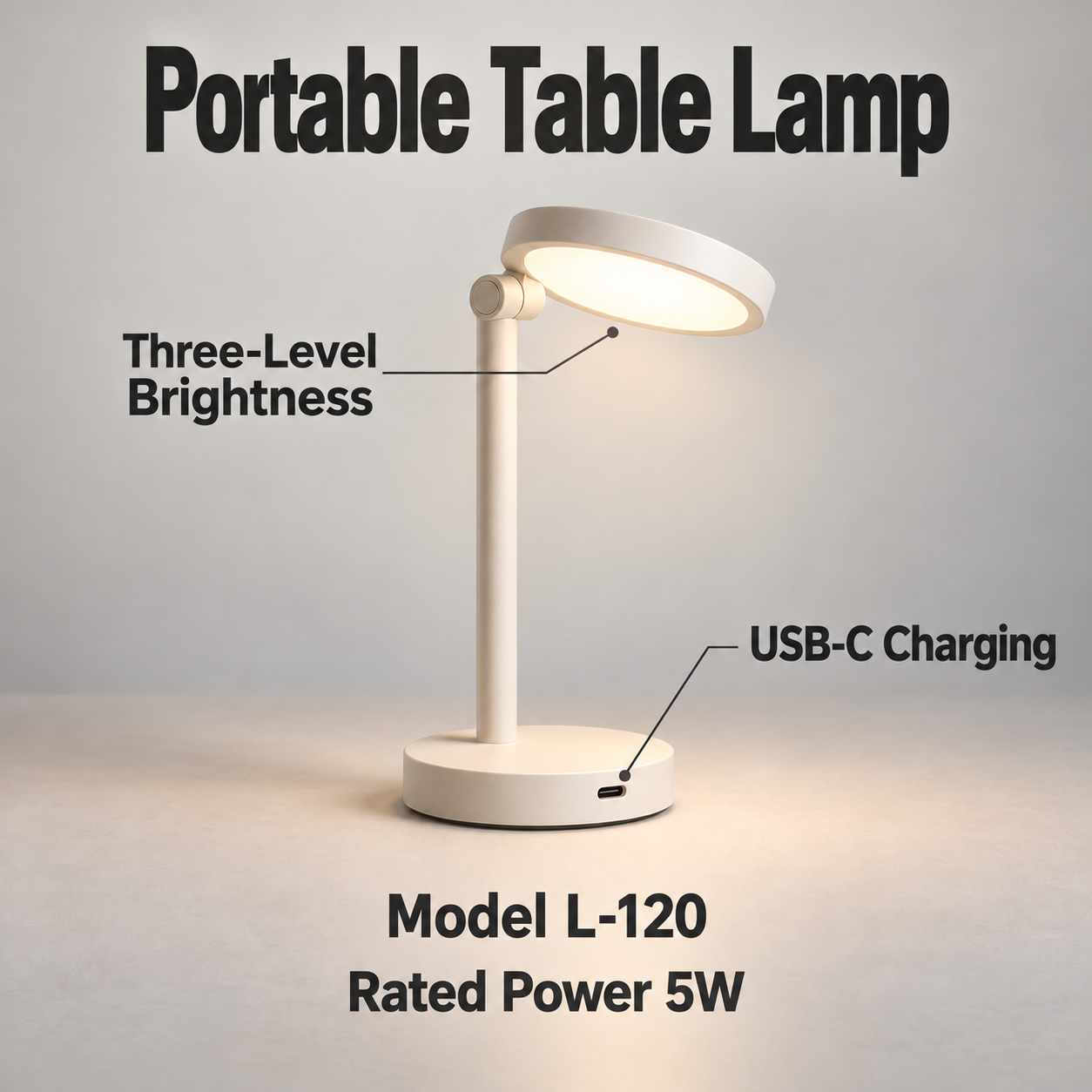
Observed output: The output keeps those identifiers. 三档亮度 becomes “Three-Level Brightness”, wrapping onto two lines. The English headline also takes substantially more horizontal space than the Chinese title.
Before publishing: Check the two-line callout at the size customers will see, including its leader line. If it crowds the product, use approved shorter copy or rebuild that panel in your design file. Shrinking every label can make an otherwise correct translation unreadable.
Seller’s brief: Localize a desk-organizer parameter image. Preserve model S-301 and all three dimensions, and check the divider feature against the pictured item.
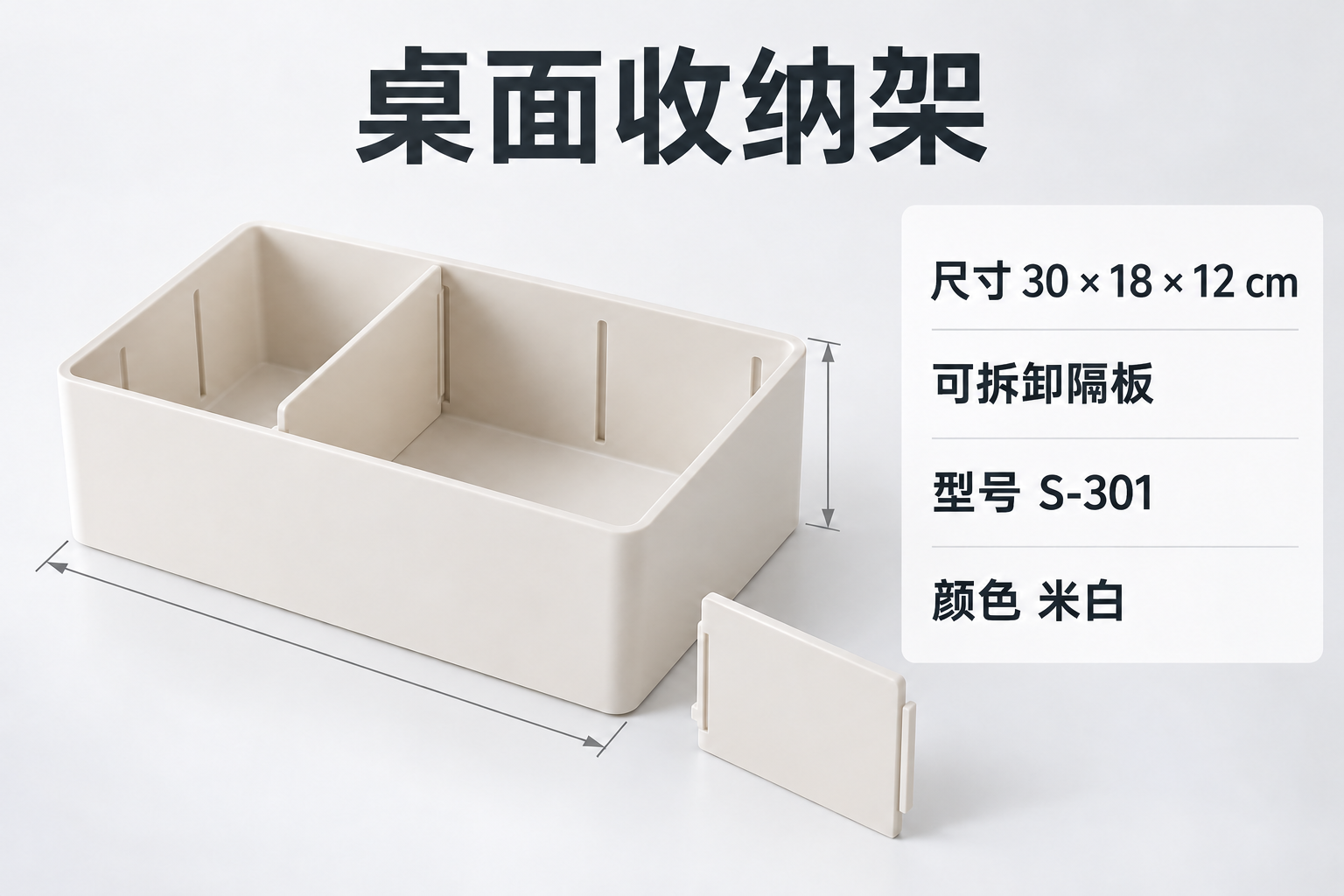
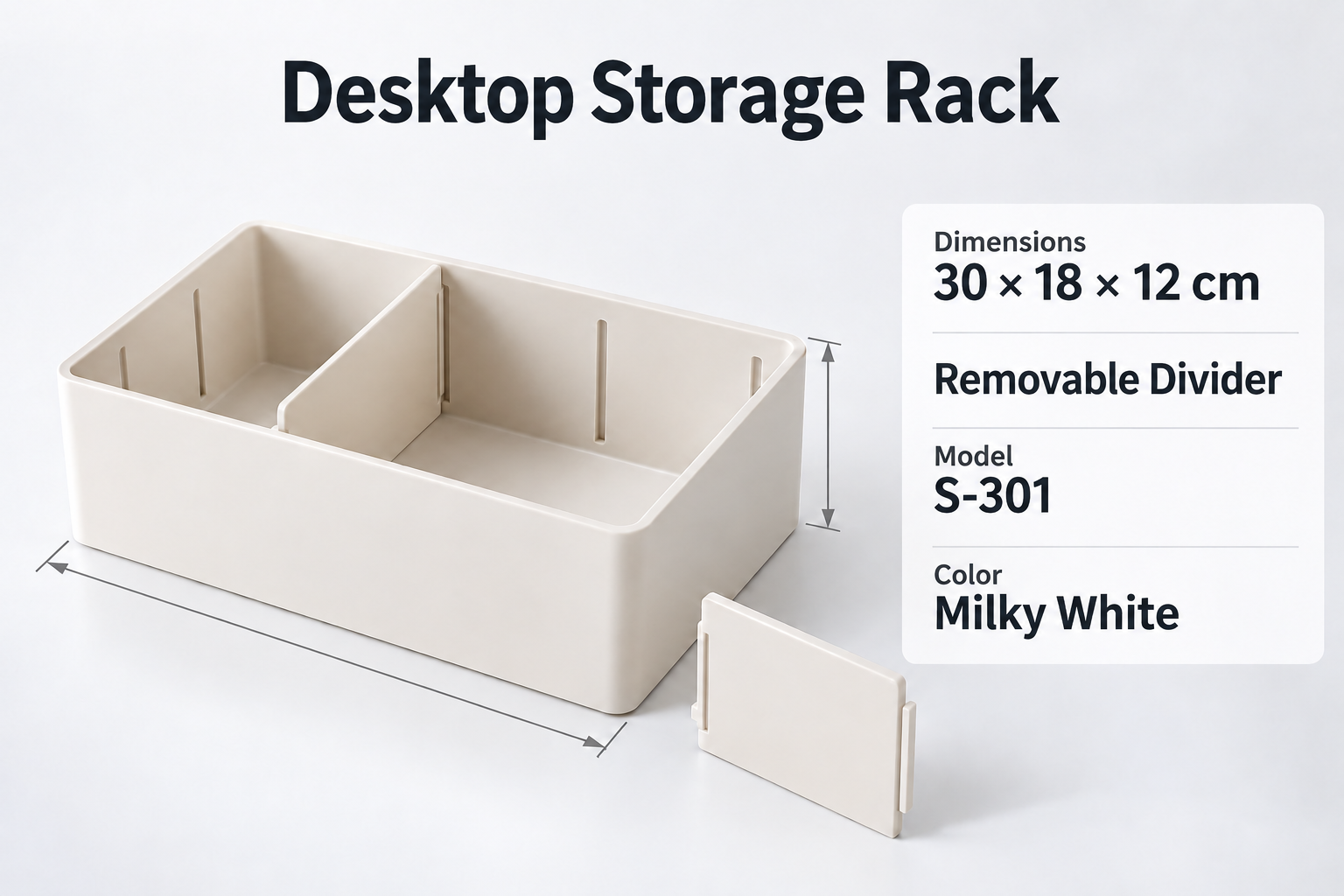
Observed output: The result retains 30 × 18 × 12 cm and S-301. It renders 米白 as “Milky White” and 可拆卸隔板 as “Removable Divider”. The dimension heading and value now occupy separate lines.
Before publishing: Compare the color label with the variant selector. If the approved variant is “Off-white”, request that exact term before publishing; “Milky White” should not silently become a second variant name. Confirm the order of the measurements against supplier data. Translation does not establish which number is width, depth or height.
Seller’s brief: Translate a travel-cup label and box, keeping 500 mL, T-500 and the meaning of 清洗后晾干: air-dry after cleaning.
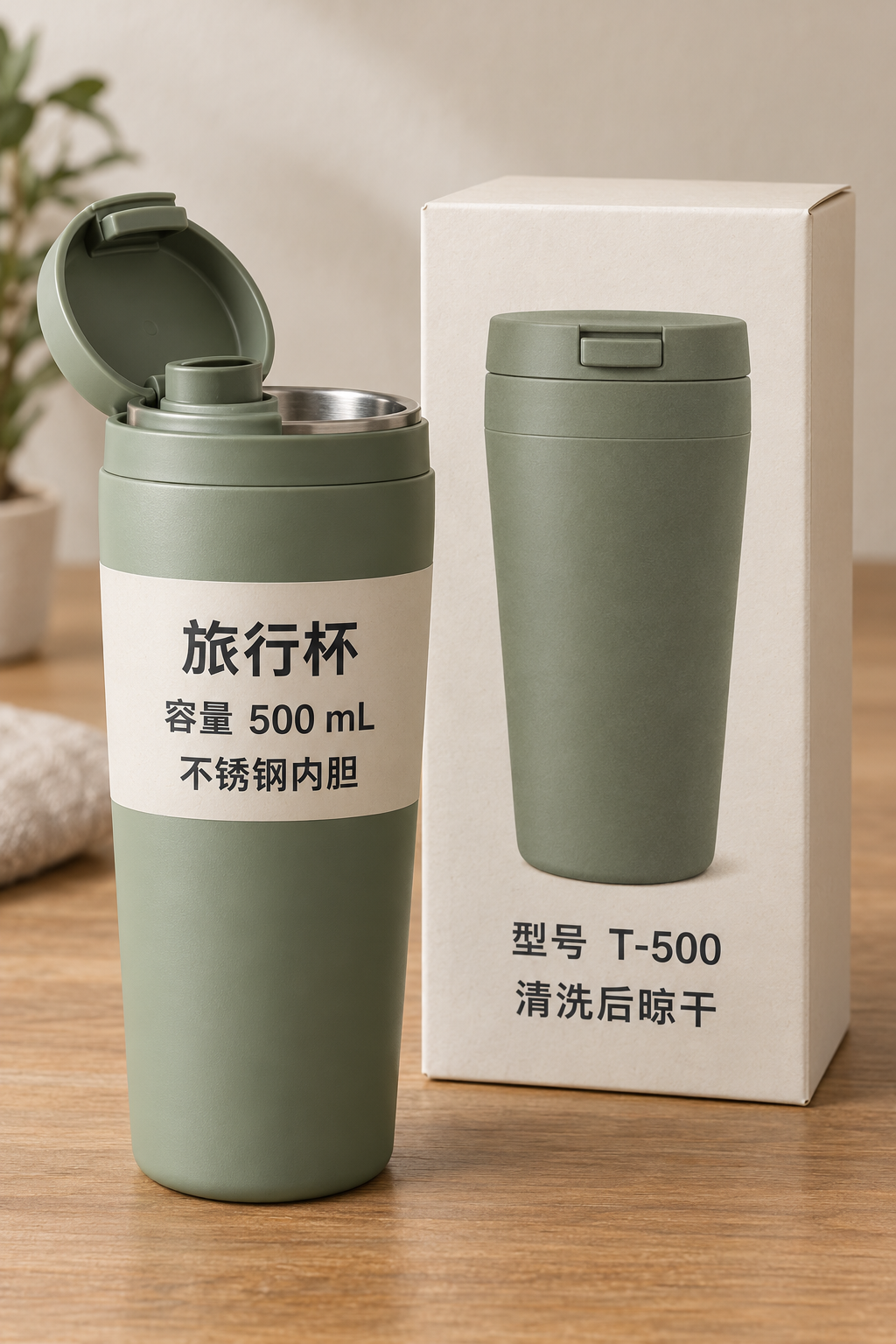
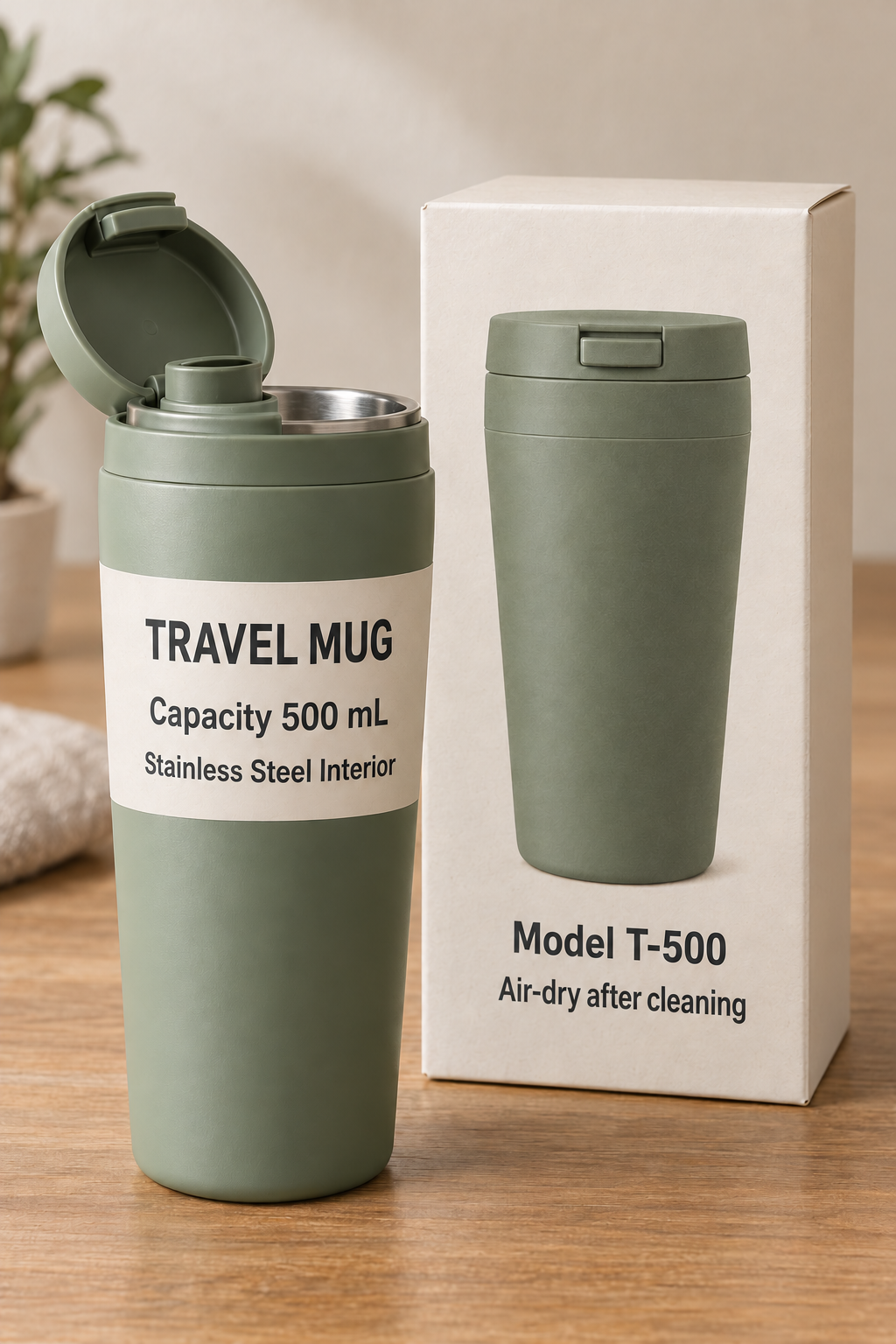
Observed output: The first output said “Rinse and use after cleaning”, losing the drying instruction. A second run with the explicit instruction below produced “Air-dry after cleaning”. The displayed result is that second output; its material wording and typography also changed.
Before publishing: Accepting the corrected care line is only one check. Recheck capacity, model, material and every other text area in the new file. Translation is not evidence for a new material grade, safety claim or certification, and changing pictured packaging does not change the physical package.
The first cup output contains the care-instruction error. The actual second run used this correction:
Translate 清洗后晾干 exactly as “Air-dry after cleaning”. Keep model T-500 and capacity 500 mL unchanged. Do not add instructions to rinse or use the cup.
This extra run is a separate translation task. A successful job with unsuitable wording is different from a failed processing task.
Keep the source, supplier specification and target-market catalog beside the result. A fluent headline is not enough to approve the entire image. Use these checks for each language, then record the filename, SKU, language and reviewer so a rejected draft does not get uploaded later.
| Check | What to compare | Approval method |
|---|---|---|
| Identity | Brand spelling, model, SKU and variant | Compare character by character with the catalog. Reject a changed model or a logo that has been redrawn incorrectly. |
| Product facts | Measurements, units, quantities and included parts | Check every number against the source and supplier specification. Keep cm as cm unless you have separately approved a conversion. |
| Meaning | Features, materials and care instructions | Ask a reader of the target language to compare the meaning, including qualifiers and instructions. Stop if a claim was added or a care step disappeared. |
| Presentation | Callouts, arrows, line breaks and product appearance | Inspect full size, then preview inside the actual mobile gallery. Check that labels point to the right part and the product still matches the SKU. |
For longer copy, approve the meaning before shortening it. Keep “three brightness levels”; do not substitute a more attractive claim such as “eye protection”. If wording still will not fit, adjust your original design or split the information into another listing panel. The result has no editable text layers, so use your design source when precise typesetting is essential.
Choose the destination and image slot before upload. Amazon’s main-image guidance on text and graphics restricts added text overlays. Translating a feature graphic does not make it eligible as a main image. Check the current rules for your category and market; preview supplementary graphics in their intended slot.
Each image × target language currently costs 10 credits. A three-image SKU in English and German creates six tasks and uses 60 credits. Testing one image in one language first uses 10 credits. Translating the other two images into that language later uses 20 more; a fresh attempt at an already completed image costs another 10.
You can submit up to ten images and five target languages together. The batch translation workflow shows how to account for every result and avoid repeating approved pairs. Sign in with a verified account to translate; new verified accounts receive 30 trial credits. Failed tasks refund their credits. Regenerating a completed result is a new task, so reserve some credits for revisions and check the current credit packs and plans before expanding a catalog.
Compare and download completed outputs, then upload approved files through your store’s existing workflow. This tool does not synchronize listings with Shopify, Amazon or other marketplaces. Keep the original and a language-specific approved copy, and check the saved listing preview after uploading. Revisit an image whenever a model, specification or package changes.
Working specifically from Chinese supplier images? Use the Chinese-to-English image tool. For camera-photo preparation, see the photo-to-English guide; for printed packaging, see the label translator.
Built for this task
Localize the text inside a product image, then review it against the SKU and target-market catalog. The tool returns a complete image; the seller approves its wording and uploads it to the store.
For: Cross-border ecommerce sellers, brands and marketing teams
Translate visible selling points while checking that the output adds no unsupported benefits. Review callout placement when the target wording is longer.
Check measurements, model references and approved color names against the listing. A translated label must still describe the exact variant being sold.
Review wording printed on a product and its box together. Compare every instruction and quantity with the source before using the image in a gallery.
What you get
Optional instructions can specify brand spelling, model references and preferred terms. Check their reproduction in the output rather than assuming an instruction guarantees an exact match.
Choose from 132 languages, with up to five targets per submission. Text length and layout can differ between languages; approval of one result does not approve the others.
Use Translation History to compare and download completed results. Keep your source and approved files organized by SKU, language and revision before manual upload to your store.
Frequently asked questions
Upload a JPG, JPEG, PNG or WebP, confirm the source language and choose the target. Add critical catalog terms as optional instructions. After processing, compare the source and result, download the reviewed image and upload it through your store workflow.
Specify exact names, model numbers and units in the instructions, then check every character in the result. The processor can change typography and visual details; exact logo, text or layout preservation is not guaranteed.
Yes, when the text is readable in a supported image. The examples on this page show actual Chinese-to-English processor outputs, including a care-instruction error and a separate corrected run. Verify product facts with your supplier before publishing.
No store synchronization is provided by this workflow. Download the reviewed file and upload it manually. Check current destination, category and image-slot rules; a translated text-heavy feature graphic is not automatically suitable as a marketplace main image.
The current rate is 10 credits per image and target language. Three images into two languages use 60 credits. New verified accounts receive 30 trial credits; failed tasks refund credits. A fresh run after a completed result is a new billed task.
The output is a rendered image, without editable text layers or an OCR text-file export. Use your original design file when you need exact typography or further layout editing.
Free credits to start
Translate product images for your store. Review real feature, specification and packaging examples, keep catalog terms consistent and check each image before publishing.