
Upload your image
Drag and drop a JPG, JPEG, PNG or WebP image into the uploader, or click to browse. You can add up to ten images in one upload flow.
Batch translate up to 10 images into multiple languages. See a real six-result example, calculate credits and review or retry individual image-language tasks.
Start with 30 free credits — translate up to 3 images, no payment required.
Drag and drop images here, or click to browse
Supports JPG, JPEG, PNG and WebP · Upload one or multiple images
Step by step
Drag and drop a JPG, JPEG, PNG or WebP image into the uploader, or click to browse. You can add up to ten images in one upload flow.
English is preselected as the target language, while the source is detected automatically from the image.
Review each image and language separately. Download completed results individually and keep a checklist of missing or rejected pairs.
Multiple inputs, separate results to approve
A batch image translator is useful when a seller needs several feature graphics, specification panels or packaging photos in the same languages. Here, every included image is translated into every selected target language. Plan that matrix before starting: three images and two languages produce six independent results, not three bilingual files.
Start with a small, named set for one SKU or campaign. Upload JPG, JPEG, PNG or WebP files, up to ten images per submission. Each file must be at most 20 MB and 4096 pixels on its longest side. A folder picker is available, but selecting a folder does not remove those limits. Export an oversized detail sheet as readable panels, keeping each caption with its diagram.
The source-language setting and optional instructions apply across the batch. Use Auto Detect when appropriate, or choose the known source language for a consistent set. Separate images that need different source settings or conflicting instructions. Likewise, if only two of ten images need Spanish, submit that smaller group separately instead of paying to translate the entire ten-image set into Spanish.
Use Custom Prompt for instructions that make sense for every selected image and target. The six outputs below used this shared instruction:
Keep L-120, S-301, T-500, USB-C, 5W, 500 mL and 30 × 18 × 12 cm unchanged. For 清洗后晾干, preserve the meaning of air-drying after cleaning; do not add using the cup. Translate 米白 naturally into the target language. Do not add product claims.
A single prompt field is not a separate glossary for each market. Avoid telling a multilingual batch to use an English phrase everywhere. If a retailer requires a particular translated color name, prepare the approved local term and split the submission when needed. Instructions still need checking in the results.
Follow this sequence with the three sample sources or a small set of your own images. The screenshots show the real preparation controls on 3 November 2026, before submission. No account credits were spent to make these screenshots. The actual translated outputs appear in the worked example below.
Open the uploader and select several files, or drag them into it. Wait until each intended image shows Ready. Count the thumbnails and check every “Include in this translation” box. The selected total and the included total can differ.
For these sources, choose Simplified Chinese under Source Language. Use Auto Detect when appropriate for your files. Enable Custom Prompt if you need preservation instructions, then enter wording that works for the whole set. The prompt above is the one used for the six existing outputs.
English starts selected. Open Target Languages, search for Spanish and add Español · Spanish, then close the selector. Confirm both chips appear. If you only need Spanish, remove English; leaving it selected requests an additional result for every included image.
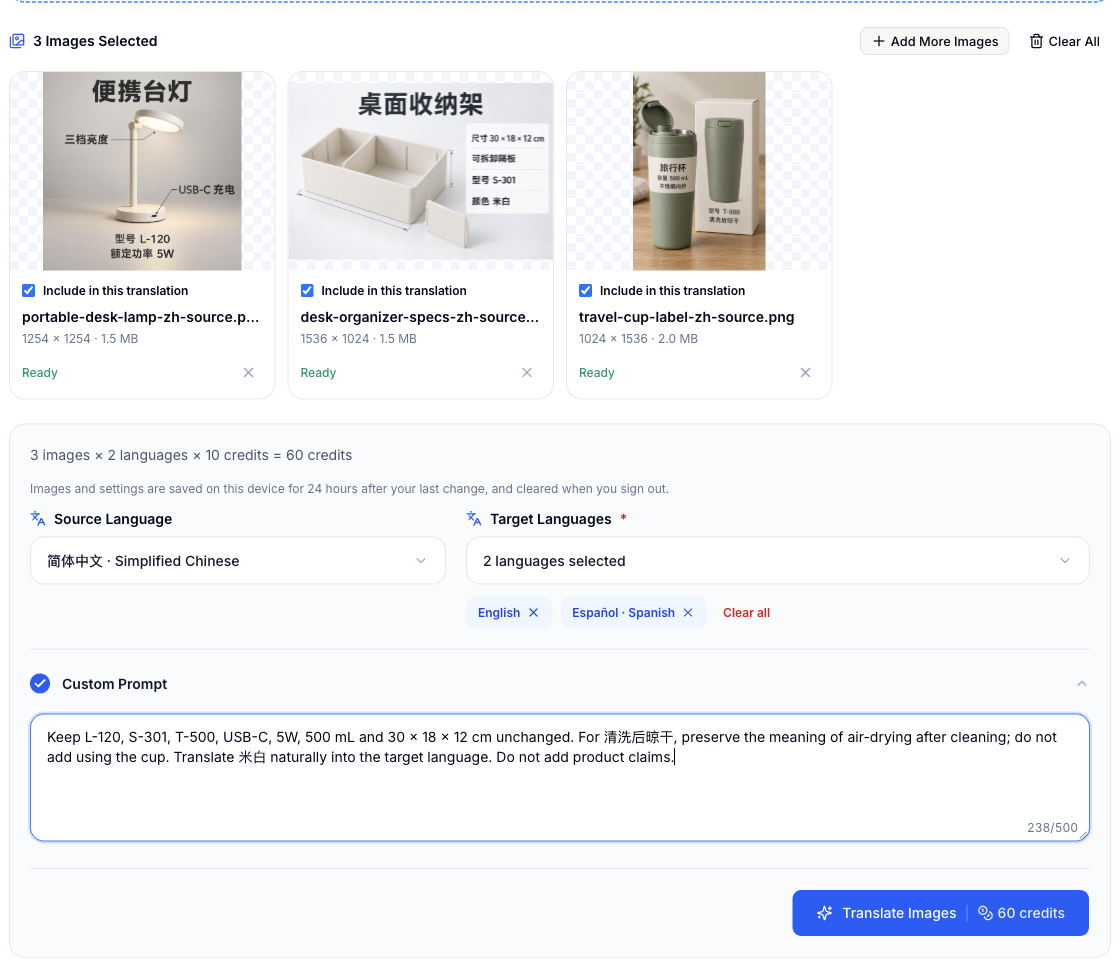
Read the calculation before pressing Translate Images. In this example it is 3 × 2 × 10 = 60 credits. Unchecking the lamp leaves three thumbnails selected but only two images included, so the total becomes 40. Recheck the boxes before submission; this is not a discount on the same six results.
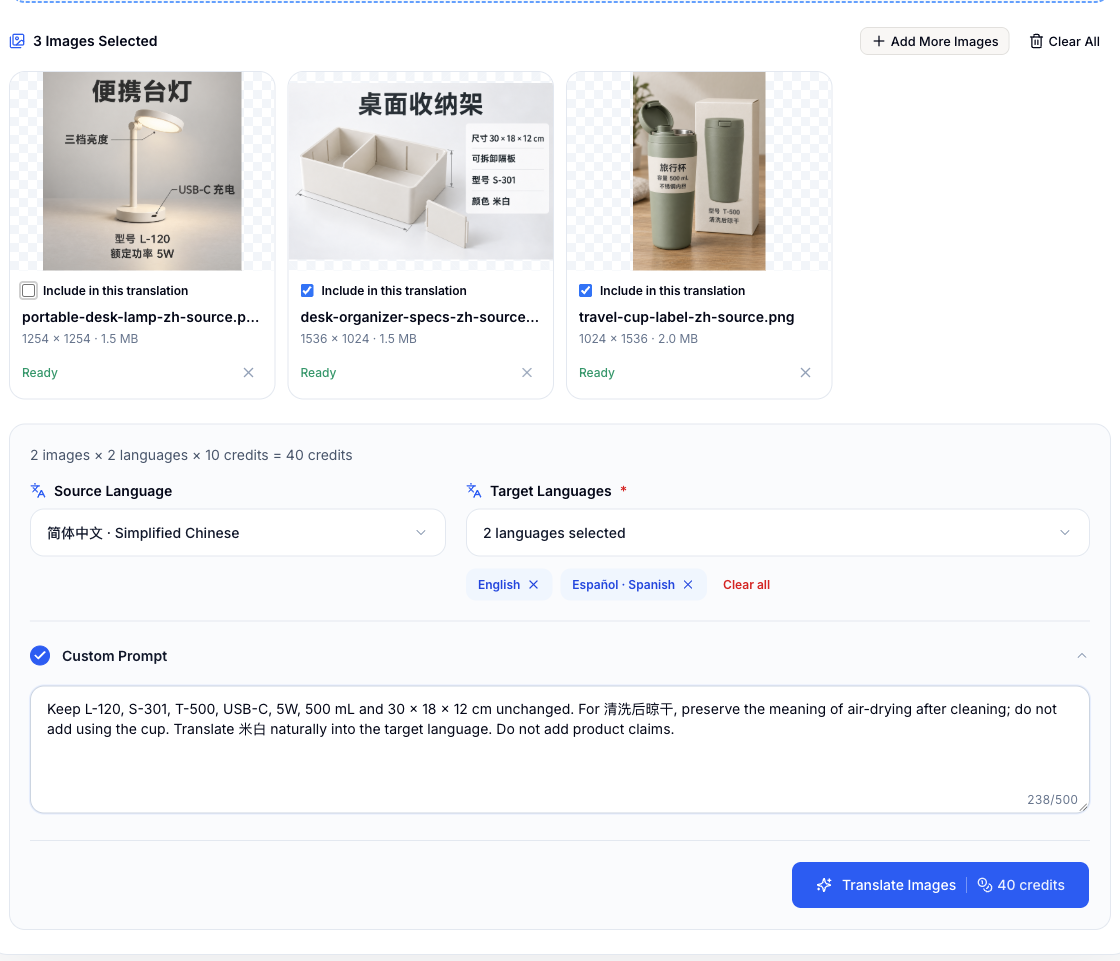
Sign in with a verified account and sufficient credits, then use Translate Images. An unsigned visitor is sent to sign in with a return to this page. A setup screenshot does not prove an account was charged or a translation finished. Check the actual result cards and history for accepted tasks before submitting again.
Use the six pairs below as your checklist. Compare each completed output with its source, record approval separately, then download and rename it. If a file fails or needs revised wording, keep the completed files and recover the affected pair as described below.
Google’s documented desktop Images workflow uploads one image, offers translated image download, then uses Clear to start the next image. Its official computer guide does not describe a folder batch or several target languages in one submission. Checked 3 November 2026; this describes that consumer web workflow, not every Google product.
For a few images, repeat that documented flow and label each download. For a set here, the uploader applies your chosen targets to every included file. Keep the same review checklist whichever method you use; no accuracy, speed or typography comparison was performed.
The sources are AI-generated fictional product examples. On 22 October 2026, we used Image Translator’s image-processing code to translate each source from Simplified Chinese into English and Spanish with the shared instructions above. All six processing calls completed. These are direct processing examples; website sign-in, upload storage and account billing were not part of this test. Open any source or output full size for review.
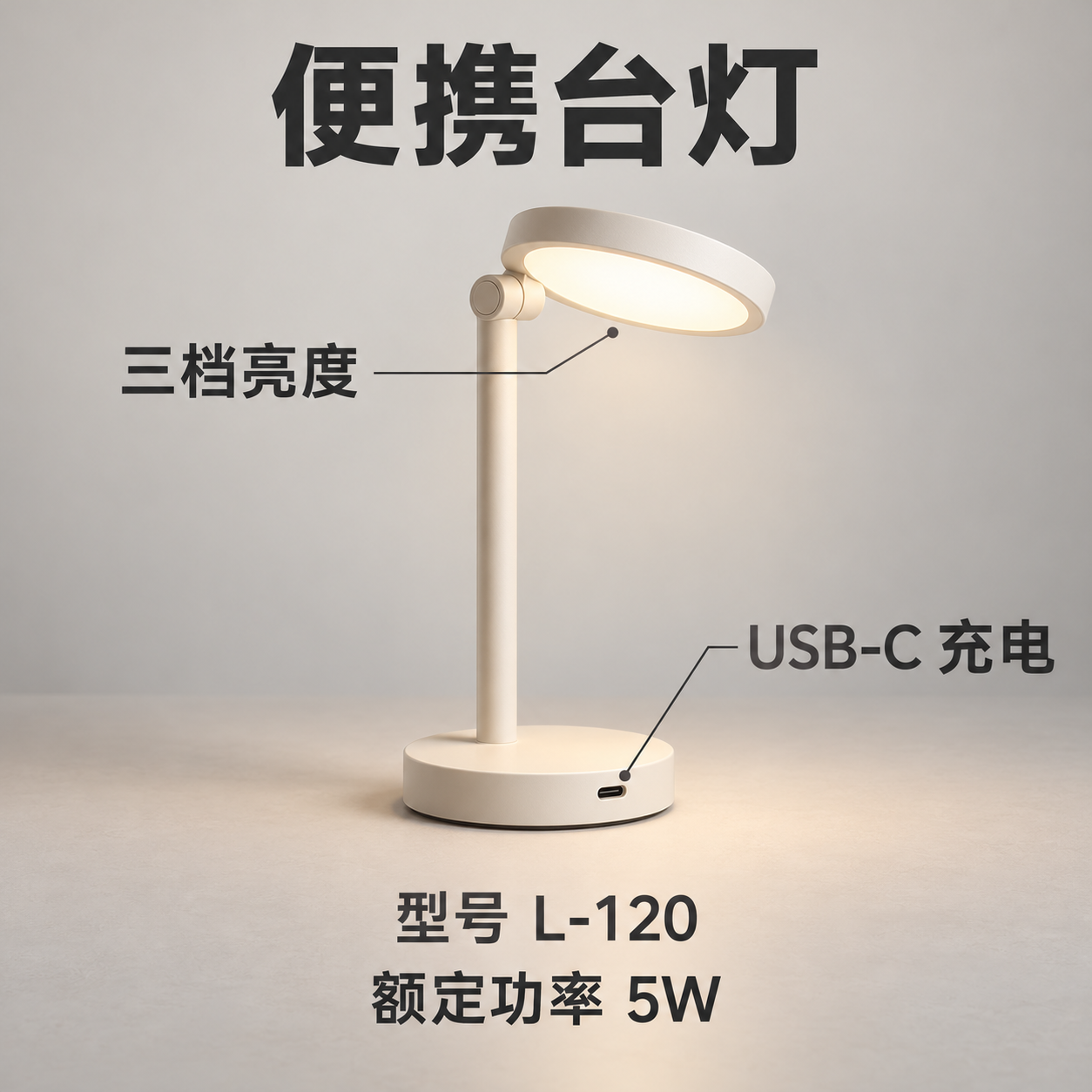
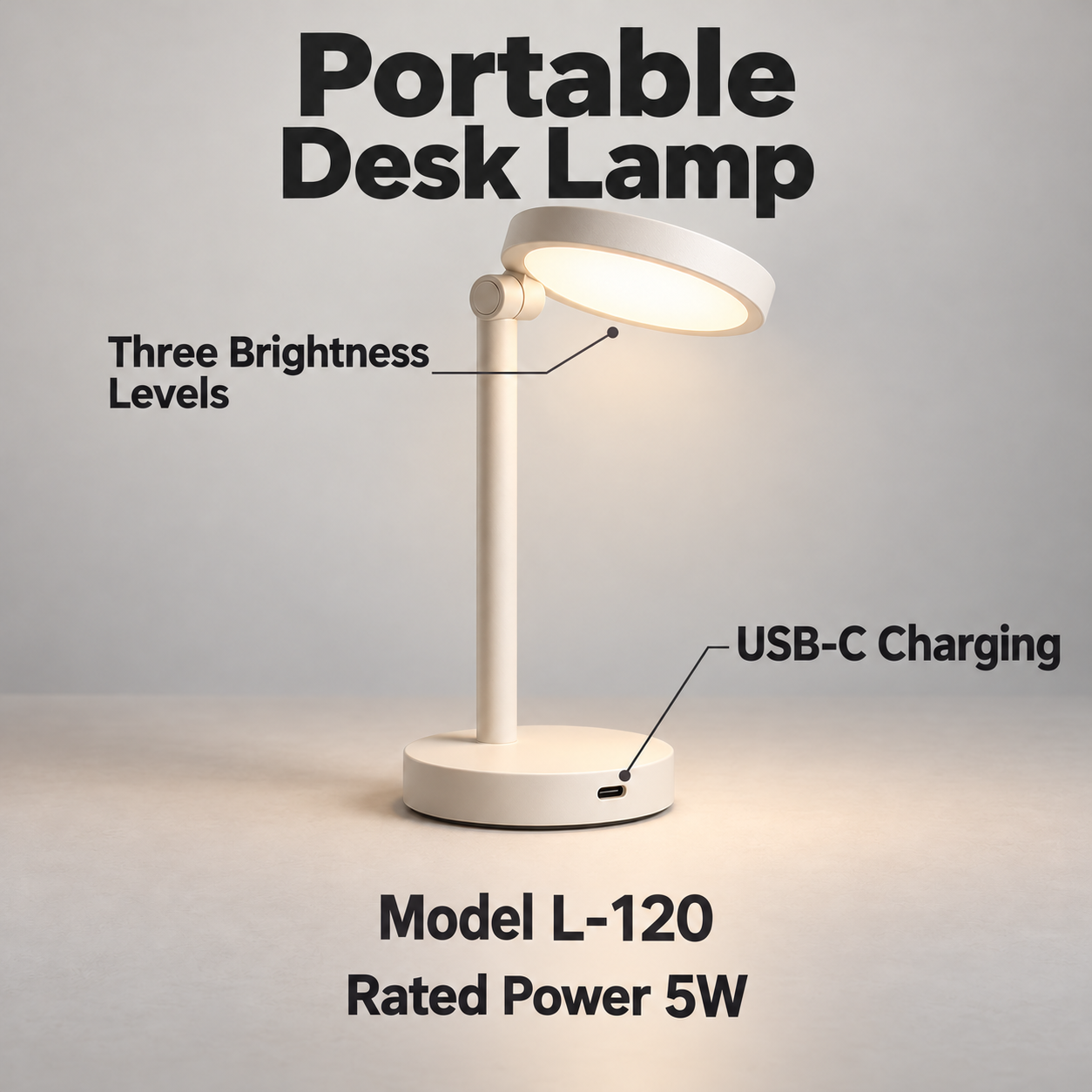
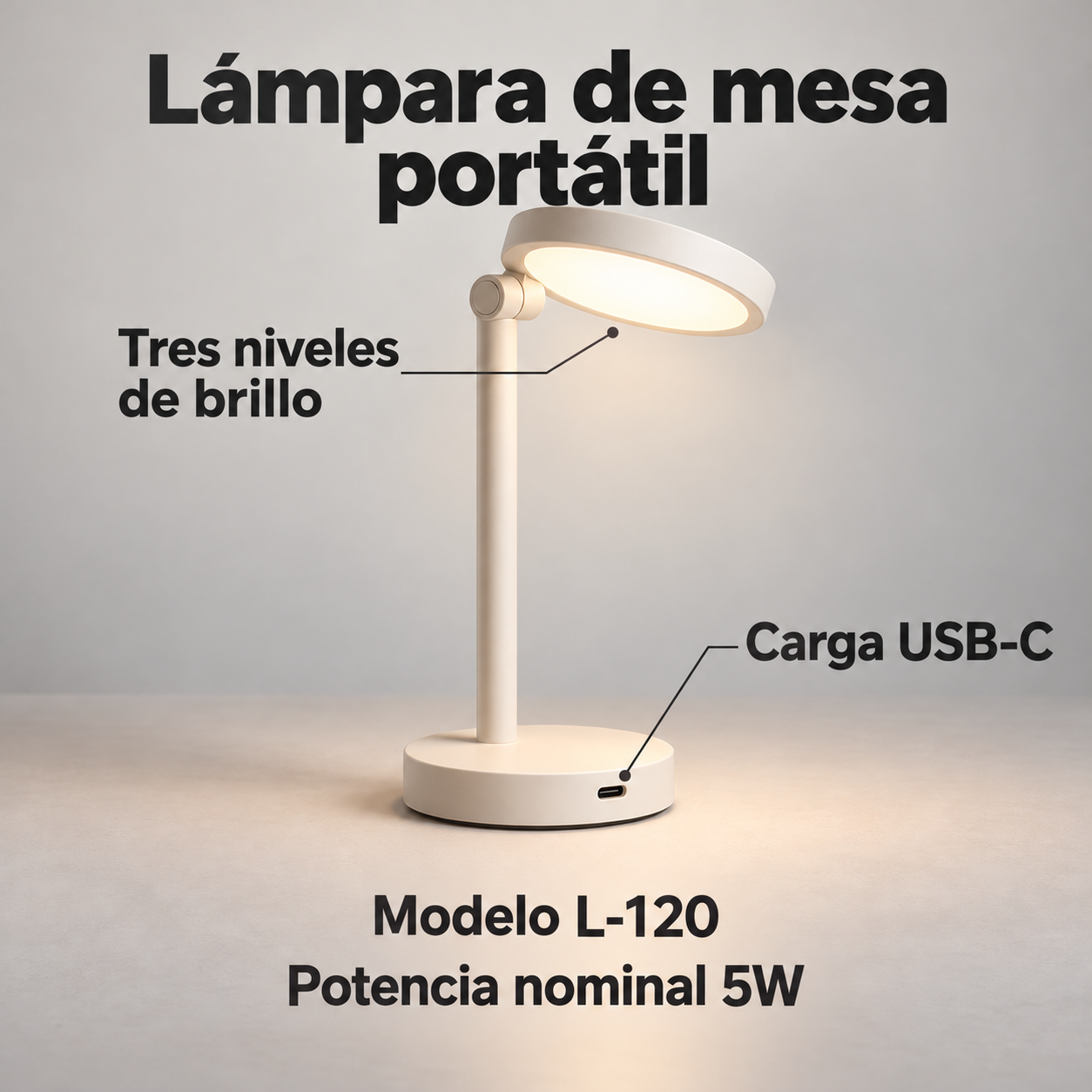
Review this pair: The English output reads “Three Brightness Levels”; the Spanish output reads “Tres niveles de brillo”. Both keep L-120, USB-C and 5W, but wrap the headline and brightness text differently. Approval of the English layout does not approve the Spanish layout.
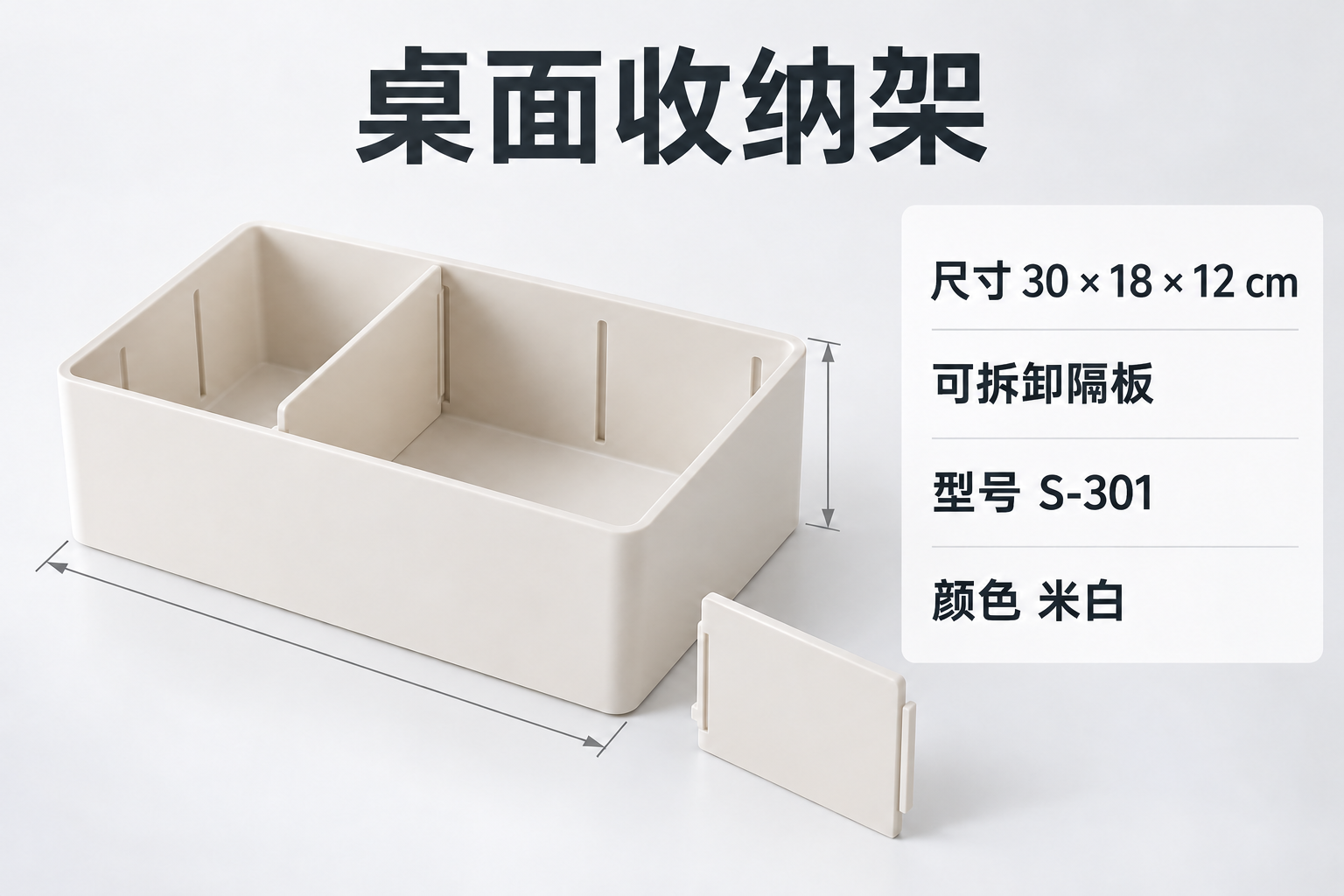
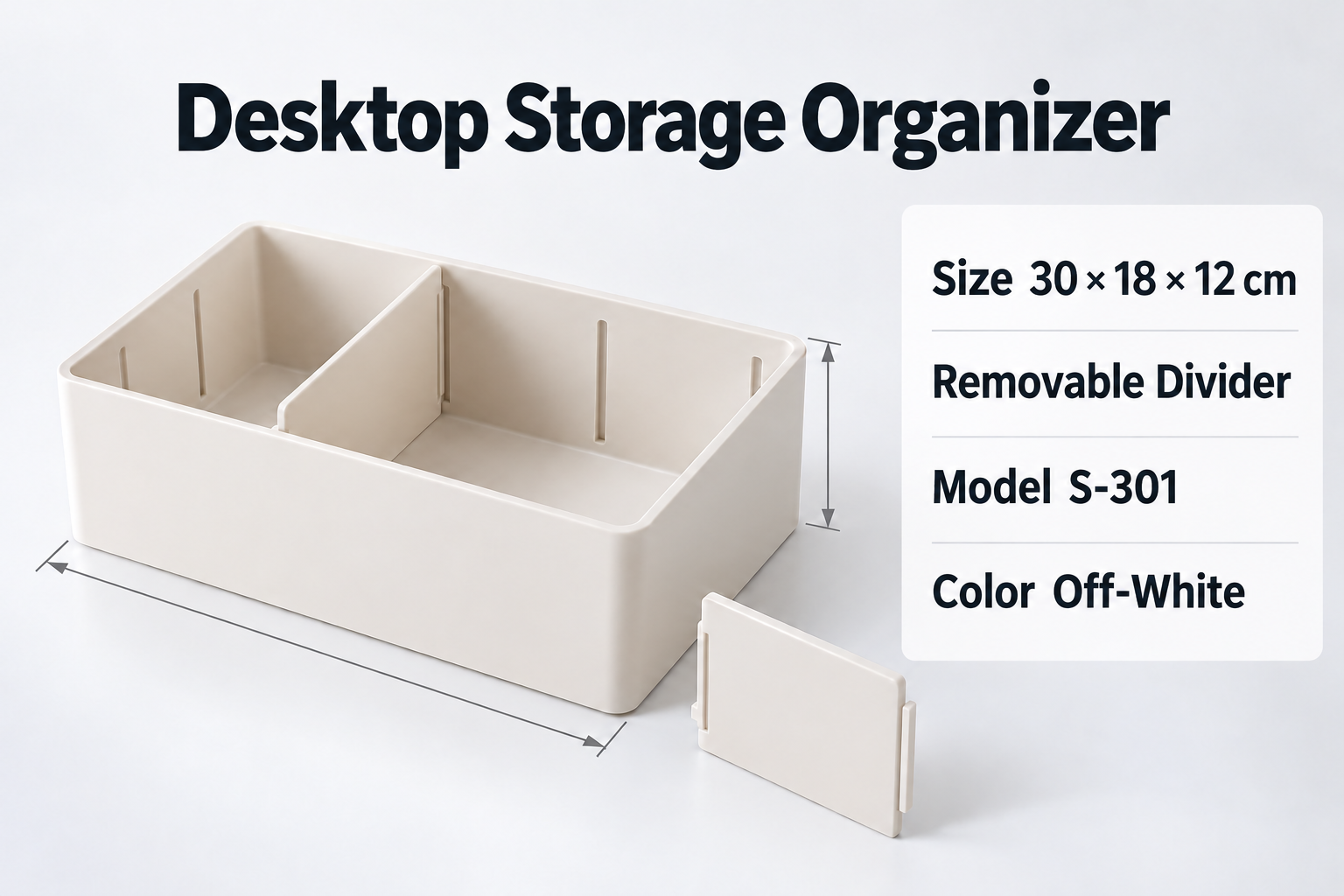
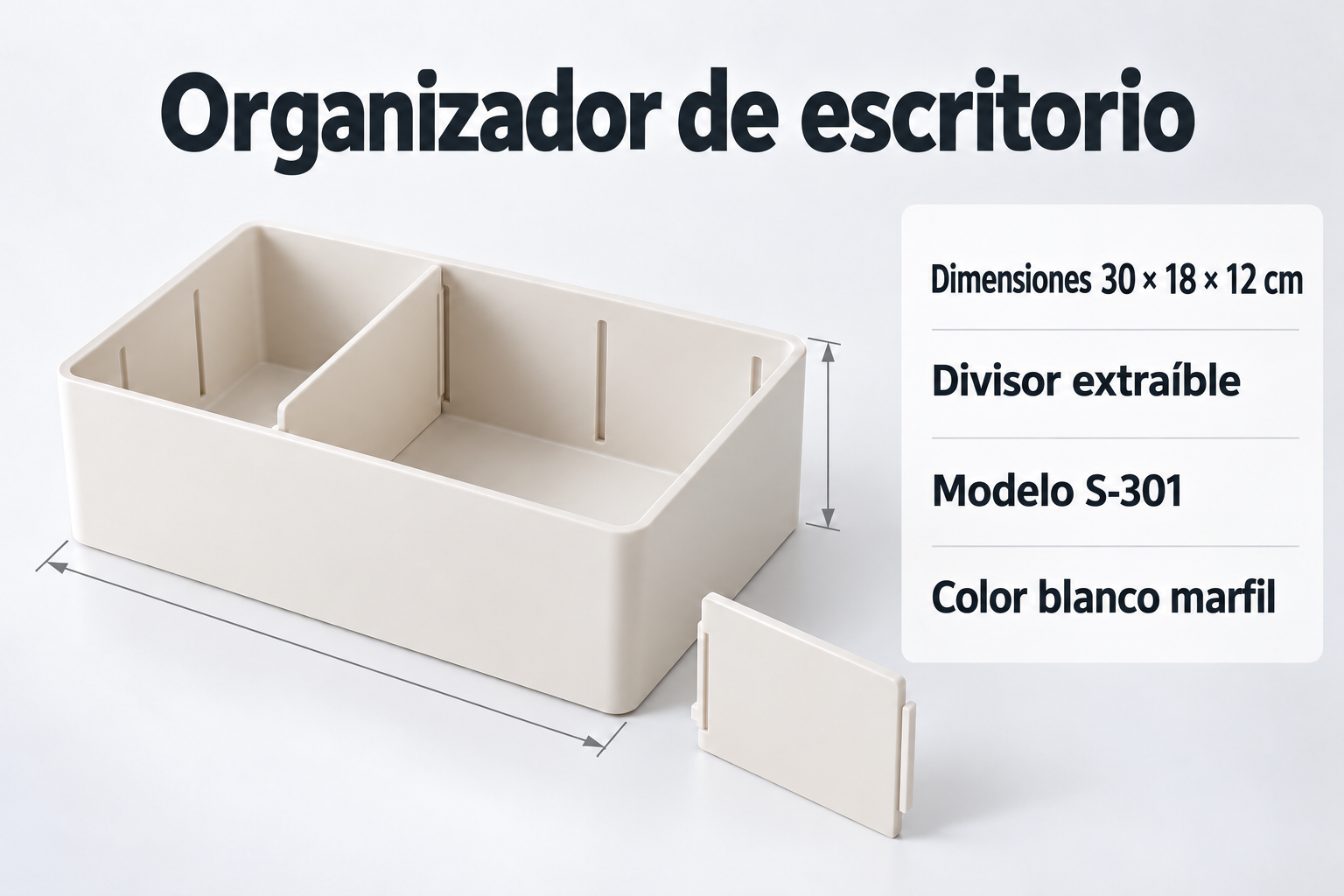
Review this pair: Both outputs retain 30 × 18 × 12 cm and S-301. The English color is “Off-White”; Spanish is “blanco marfil”. Match each term to your approved variant vocabulary and check the dimensions independently. A shared prompt does not create an approved multilingual glossary.
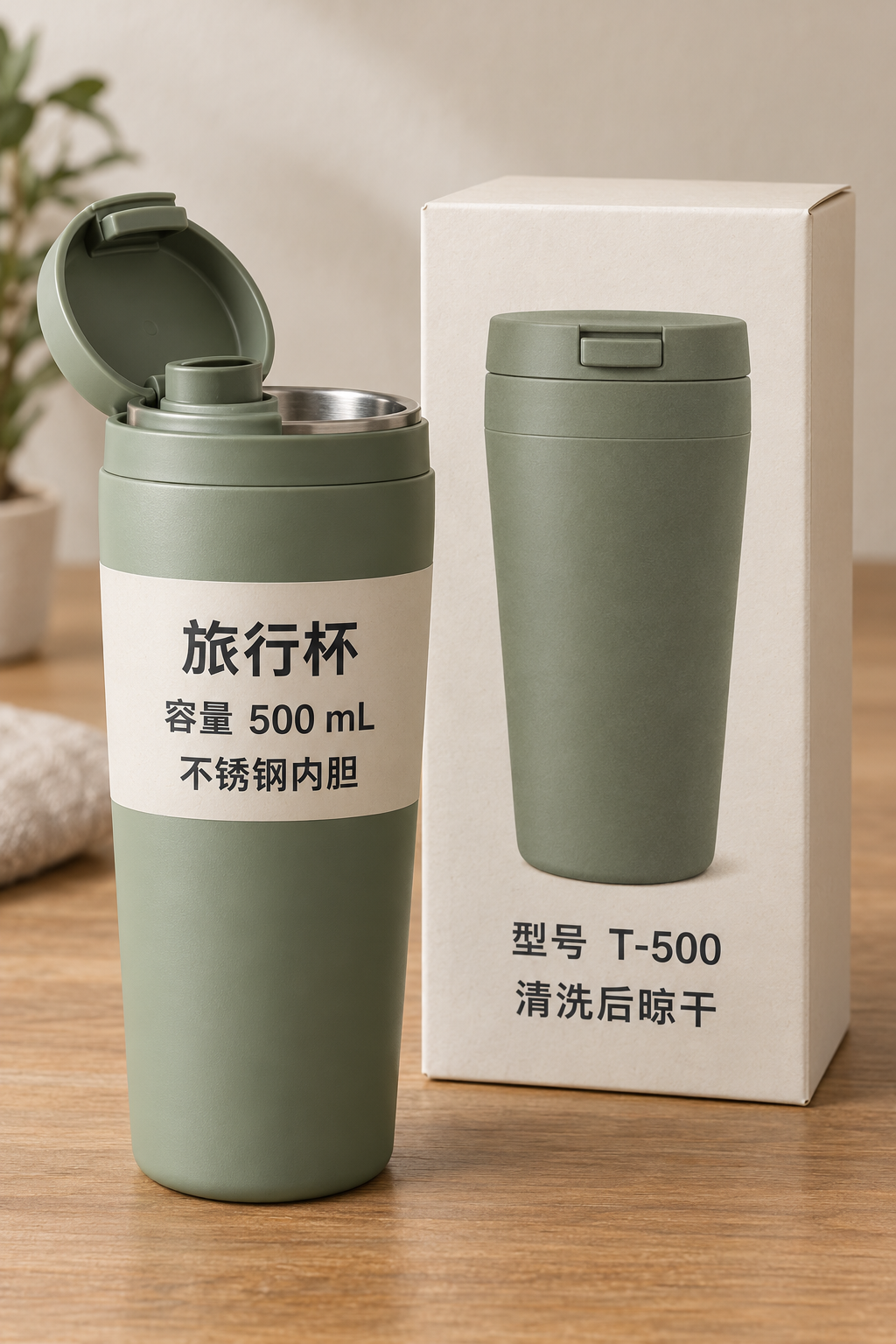
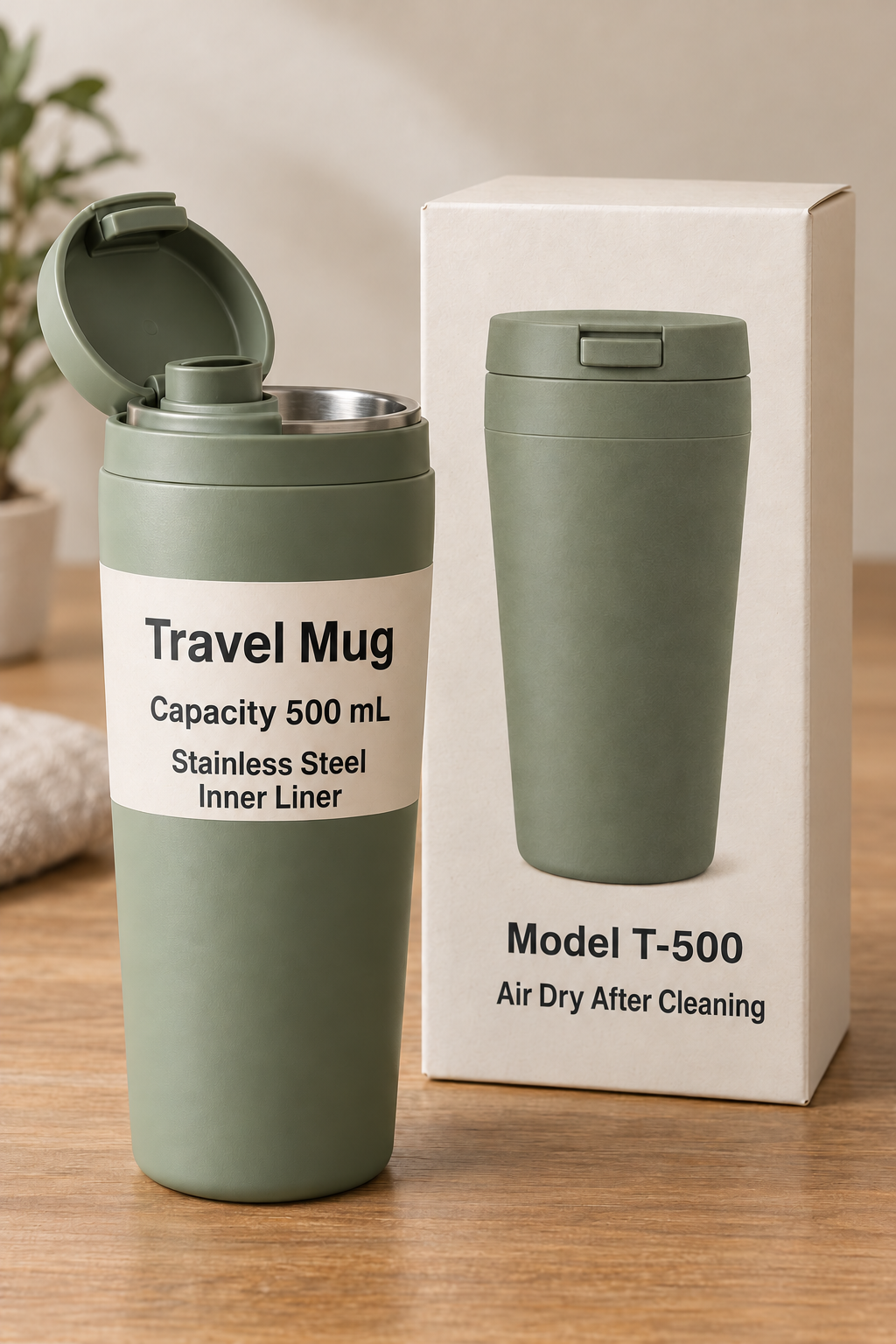
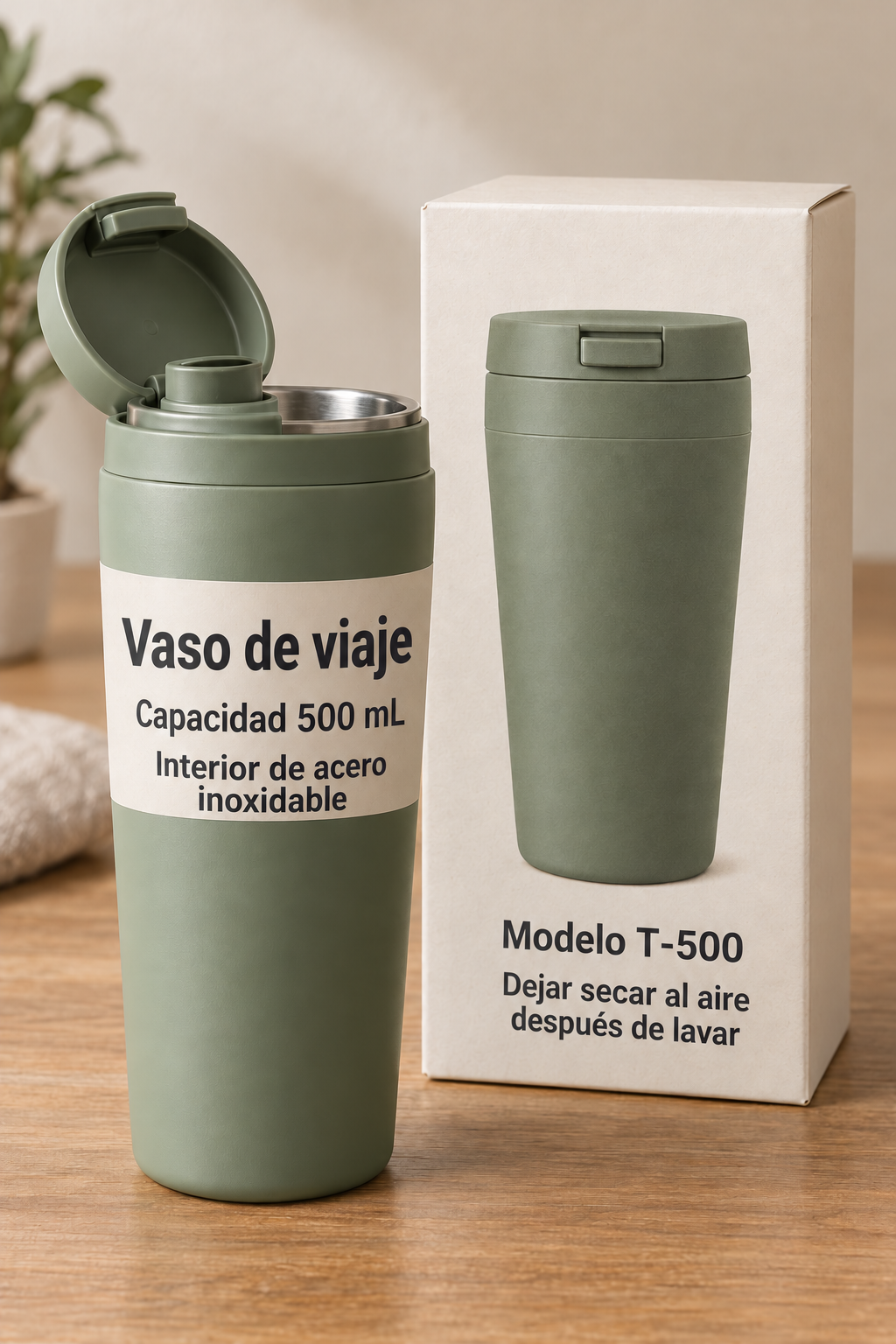
Review this pair: English reads “Air Dry After Cleaning”; Spanish reads “Dejar secar al aire después de lavar”. Both keep 500 mL and T-500. The longer Spanish care line wraps on the box, and the material text also wraps on the cup. Check each surface rather than approving only the large product name.
Keep a six-row checklist: lamp/English, lamp/Spanish, organizer/English, organizer/Spanish, cup/English and cup/Spanish. Mark processing status separately from approval. A result can be complete and still need a copy or layout correction. Check models, units and dimensions against the source; have a target-language reader review wording before commercial use.
| Source | Target | Suggested saved filename |
|---|---|---|
| Lamp L-120 | English | L120_callouts_en_v1.png |
| Lamp L-120 | Spanish | L120_callouts_es_v1.png |
| Organizer S-301 | English | S301_specs_en_v1.png |
| Organizer S-301 | Spanish | S301_specs_es_v1.png |
| Cup T-500 | English | T500_label_en_v1.png |
| Cup T-500 | Spanish | T500_label_es_v1.png |
These are suggested names for files you save manually, not an automatic export feature. Mark each pair as pending, failed, needs revision or approved in your own tracking sheet. If you excluded the lamp, its two rows remain outside the current submission.
For each completed website task, compare the original and translated image, then use its Download action. The current interface downloads individual results; this workflow does not promise a ZIP export. Put files into language folders and rename them with SKU, image role, language and revision, such as L120_callouts_es_reviewed_v1.png. Do not rely on the browser’s duplicate-filename numbers to identify a language.
The current rate is 10 credits per image and target language. A verified account is required to translate; new verified accounts receive 30 trial credits. The six-result example would require 60 website credits, so the trial alone does not cover that complete set. The processor test above is not a customer billing receipt.
| Included images | Targets | Results | Credits |
|---|---|---|---|
| 1 | 1 | 1 | 10 |
| 3 | 1 | 3 | 30 |
| 3 | 2 | 6 | 60 |
| 10 | 5 | 50 | 500 |
Test one image in one language first: 10 credits. To complete a three-image English/Spanish set without repeating that pilot, submit the remaining two images into English for 20 credits, then all three into Spanish for 30. Total: 60 credits. Starting the whole three-by-two set again after the pilot instead totals 70, because the pilot pair is translated twice.
If one of six charged tasks fails and its 10 credits are returned, the five completed tasks account for 50 credits. A new attempt at the missing pair requires another 10; a successful retry brings the six-result set back to 60 net credits. Check the displayed refund status and available balance before retrying. A completed image you dislike is not a processing failure; another output uses a new billed task.
Use the current plans and credit packs when planning a larger job. More files mean more results to inspect, not a guarantee of matching typography or terminology across the set.
Check that file’s format, size, dimensions and connection. An upload problem is separate from a translation task failure. Other files may have been accepted; check the result list before submitting the same set again.
Check the individual result card and its credit-return status. Use Retry when it is offered for a temporary failure; it creates a new task for that image and language. Keep the completed results instead of running the whole set again. If the interface asks for a new image, fix the source or request before resubmitting.
Treat it as a review failure, even though processing completed. Prepare corrected instructions and resubmit only the affected image and language. Regenerate makes a new task with the previous settings; changing the wording requires a new submission with your revised instructions.
Check the current result list and Translation History first. A network error is not proof that nothing was accepted. Confirm which image/language pairs already exist before starting another batch.
For blurry or cut-off source text, obtain a clearer original before trying again. For dense panels, split the image while retaining context. Keep approved files out of the next submission and check Translation History when returning later. A batch is finished when every required pair is accounted for and reviewed, rather than when a single example looks good.
Need detailed SKU and wording checks? Follow the product-image review workflow. For readable camera inputs, see the photo preparation guide. This uploader returns translated image files; it does not publish them to a store or translate a PDF directly.
Prepare a small batchBuilt for this task
Use one submission for images that share source settings, target languages and instructions. Every included image gets one separate output for each selected language, so review and organize the complete result matrix.
For: Ecommerce sellers, brand teams and marketers preparing multilingual image sets
Group the feature graphic, dimensions and packaging photo for a product. Check that all required images have a reviewed result in every selected language.
Submit creative variants together when the same targets and wording rules apply. Split the set if the images require conflicting terms or different markets.
Test a representative image first, then complete only the missing pairs. Keep approved outputs instead of generating the same image-language combination twice.
What you get
The uploader calculates included images × selected target languages × 10 credits. Three images into two languages are six tasks and require 60 credits.
Each image-language pair has its own task. Download completed images individually and keep a checklist of missing, failed or unapproved results.
A failed task and an unsuitable completed image need different actions. Check refund status, use Retry when offered, or submit one image and language with corrected instructions.
Frequently asked questions
Select several source files, wait for Ready and check their Include boxes. Choose the shared source, target language chips and any instructions. Confirm the image × language credit total before submitting from a verified account, then review and download each result individually. The illustrated steps on this page show the real preparation controls.
Google’s documented consumer desktop Images workflow starts with one image, offers translated image download and uses Clear before the next. Its computer help does not document a folder batch. See the official guide linked in the workflow section; this is not a claim about every Google product.
The current limits are ten JPG, JPEG, PNG or WebP files and five target languages per submission. Each file can be up to 20 MB and 4096 pixels on its longest side. Three included images and two targets create six separate results.
Each image and target-language combination currently costs 10 credits. Three images into English and Spanish require 60 credits. The 30-credit trial for new verified accounts covers three such tasks, not the full six-result set.
Yes. The source setting and optional prompt are shared across the submission, and every included image is sent to every selected target. Split groups that need different settings or conflicting terminology.
Keep completed results and check the individual failed task and refund status. Retry is offered for temporary failures and creates a new task for that pair. Fix an invalid source or request before resubmission. Another task requires credits even when the failed task’s earlier credits are returned.
The current workflow provides an individual Download action for each completed image. It does not offer a ZIP export here. Organize downloaded results by SKU, image role, language and revision.
Regenerate creates another task using the previous settings. To change instructions, make a new submission with the affected image and target language, add the corrected prompt and review the whole new result. A completed image with unsuitable copy is not a failed processing task.
Continue exploring
Free credits to start
Batch translate up to 10 images into multiple languages. See a real six-result example, calculate credits and review or retry individual image-language tasks.